

Integrating Lynx DevTool
When encountering issues during Lynx page development, you can use DevTool for debugging. However, you need to follow these steps to integrate DevTool first.
It is recommended to integrate DevTool in non-production environments to keep your production builds lightweight.
- Package size: DevTool will increase the package size.
- Runtime: Related modules are lazy loaded when enabled, which will increase memory overhead, and some features may affect the loading performance.
All code examples in this documentation can be found in the integrating-lynx-demo-projects.
Adding Dependencies
You need to add two components: LynxDevTool and the Devtool subcomponent of LynxService.
Enabling DevTool
DevTool provides several debugging switches. Here are three important switches:
Lynx Debugis the switch that controls all DevTool debugging.Lynx DevToolcontrols main debugging features: element inspection and JavaScript debugging.Lynx LogBoxmanages the LogBox.
These three switches are disabled by default, you need to enable them.
Lynx DevToolandLynx LogBoxswitches can only take effect afterLynx Debugis enabled.- When debugging Lynx pages with the DevTool Desktop,
Lynx DevToolneeds to be enabled. - LogBox helps you quickly identify and diagnose issues.
You can configure these switches during Lynx Environment Initialization:
In addition to the three switches introduced earlier, there are more switches that can help you control the behavior of DevTool. Please refer to the Lynx DevTool Switch Page.
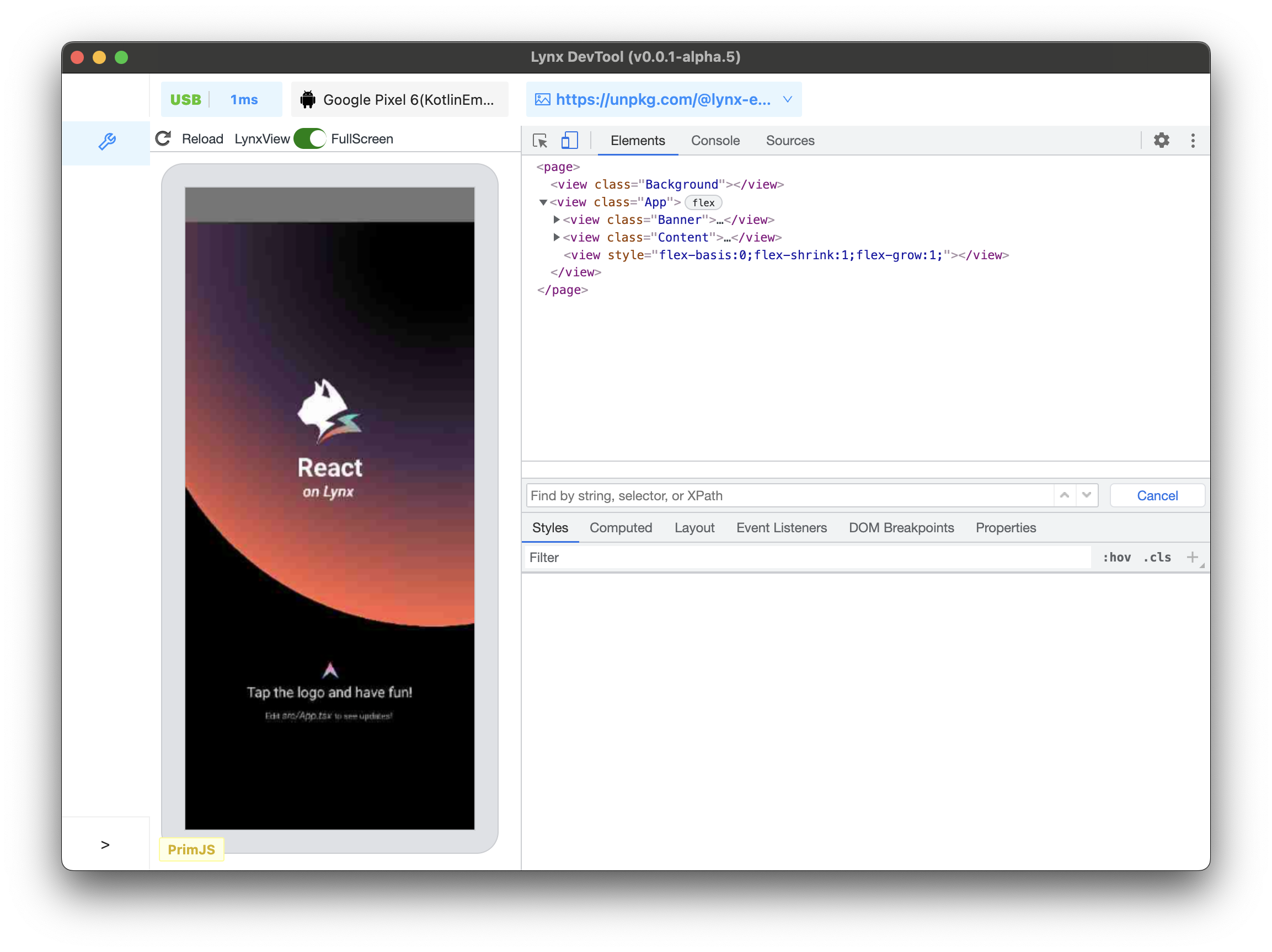
Congratulations! You have completed the DevTool integration. Now, you may launch the Lynx DevTool Desktop and connect your app via USB to start debugging.
Compatibility
LCD tables only load in the browser