

Record Trace
This article aims to help you use DevTool to record Trace for Lynx pages. By following these steps, you will be able to capture detailed information about the page rendering process and engine execution, enabling effective performance analysis and problem diagnosis.
Setup
- Install DevTool Desktop Application.
- Use the latest LynxExplorer app or integrate lynx dev version into your application.
- Use a data cable to connect your device to your computer.
Record Trace
Select Trace
Open the DevTool desktop application and choose Trace from the topbar.

Select the app
Pick the target app you want to profile from the available device list.

Start recording
Press the Start button to start recording trace.

Stop recording
Click the Stop button to stop recording trace.

Analyze
After stopping, the trace data will be displayed for analysis.
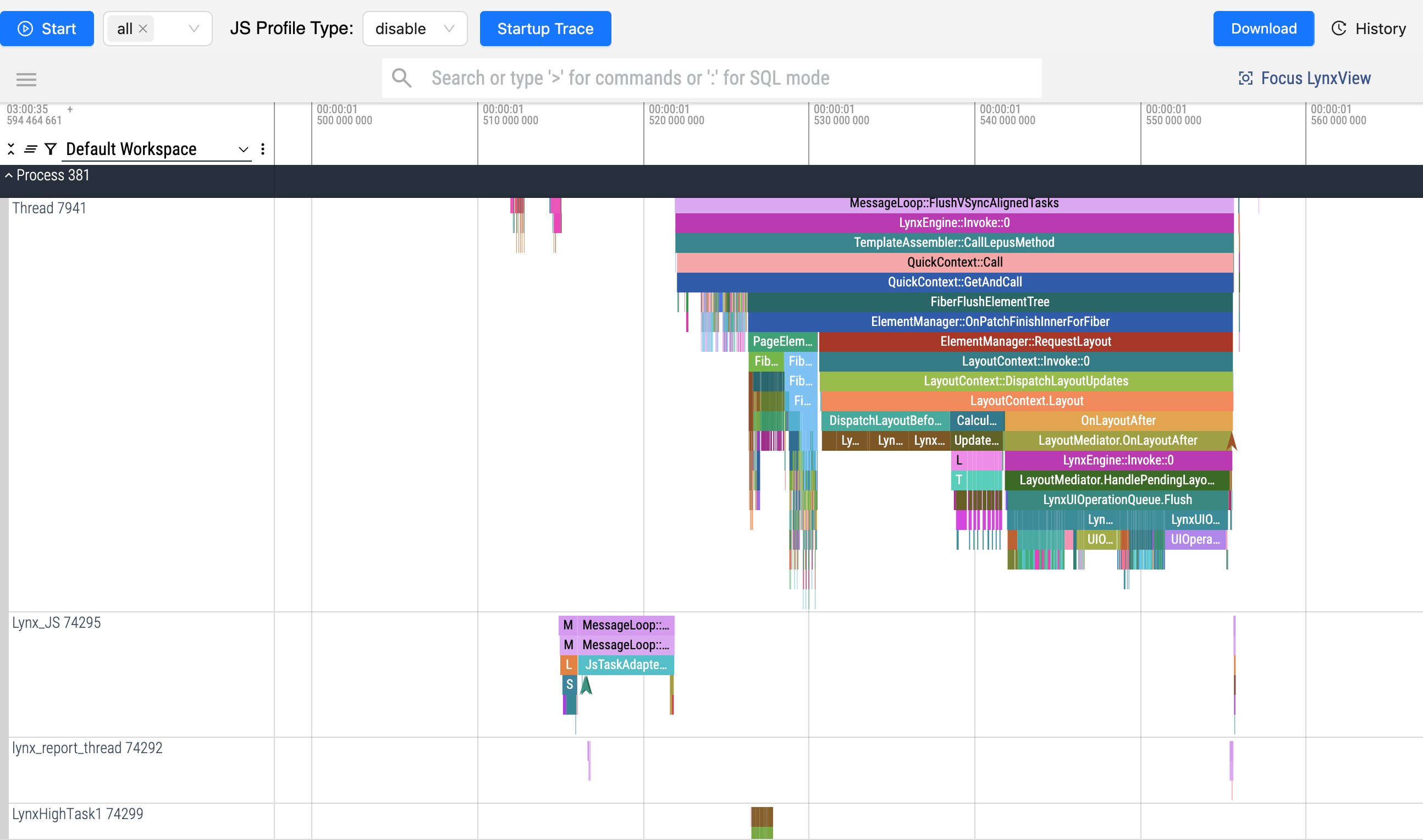
Download trace data(optional)
If needed, click the Download button to save the trace file to your computer.

View or manage historical trace data
Click History button to see previous trace data.

You can select a trace file to view, download, or delete as needed on Trace History panel.
FAQ
After clicking Start button, the message "Current app does not integrate lynx and lynx-trace components with dev version, please integrate dev version first according to the following document" appears.
- Use the latest LynxExplorer app, or refer to integrate lynx dev version to integrate the dev version of lynx.
After clicking Start button, the message "Tracing already started" appears.
- A trace recording is already in progress. Click
Stopbutton to end it.