

<input>
<input> is used to create interactive input controls that allow users to input and edit single-line text.
This feature requires the client to add additional dependencies. Please refer to More Elements for the integration method.
Usage
Basic
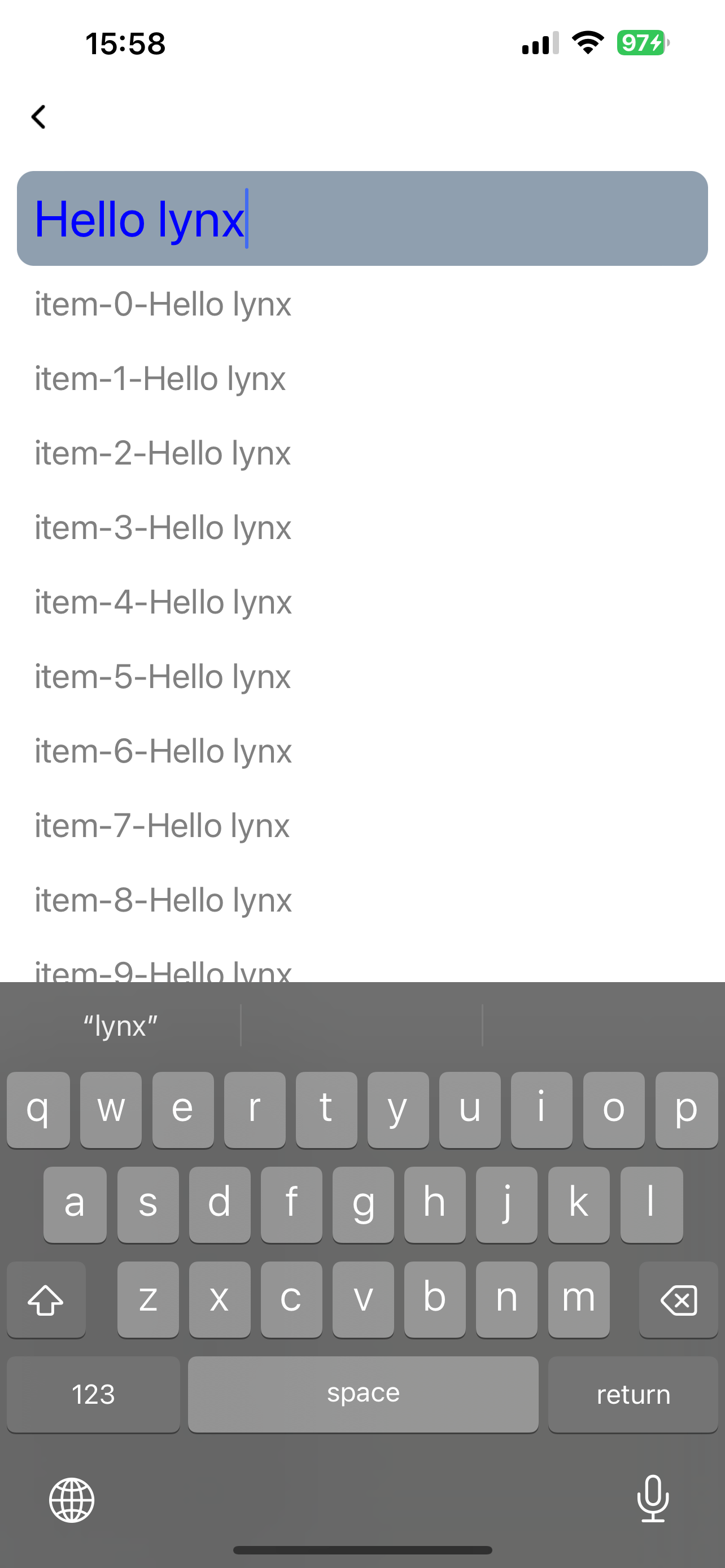
Below is a basic usage example of the <input> component:
Keyboard Avoidance
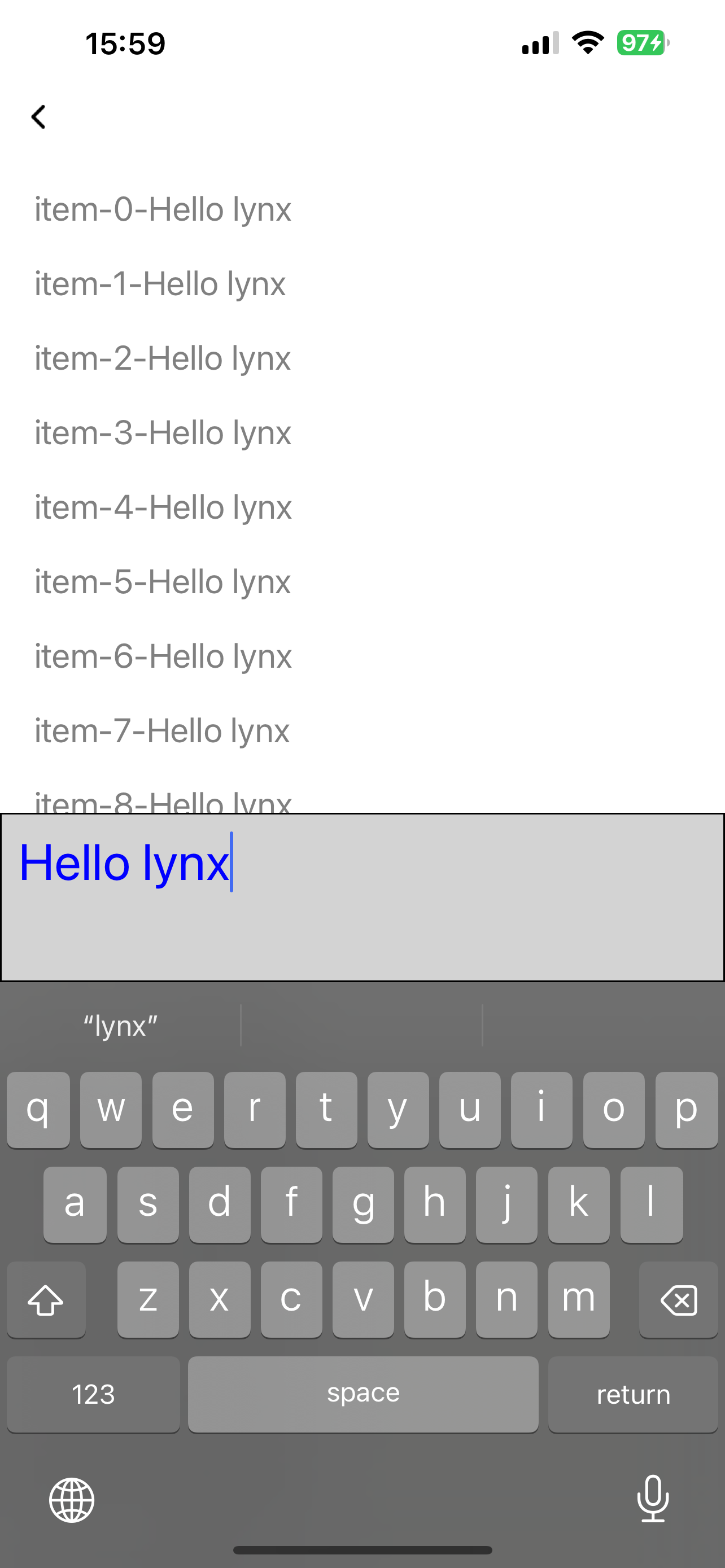
<input> doesn't automatically avoid keyboards, but you can adjust its position by listening to keyboard events and modifying its position accordingly:
Attributes
android-fullscreen-mode
Android
3.4
Whether to enter the full-screen input mode when in landscape screen, in which the keyboard and input box will take up the entire screen
confirm-type
Android
iOS
Harmony
3.4
The type of confirm button
disabled
Android
iOS
Harmony
3.5
Interaction enabled
input-filter
Android
iOS
Harmony
3.4
Filter the input content and process it in the form of regular expressions
ios-auto-correct
iOS
3.4
Auto correct input content on iOS
ios-spell-check
iOS
3.4
Check spelling issue on iOS
maxlength
Android
iOS
Harmony
3.4
Max input length
placeholder
Android
iOS
Harmony
3.4
Placeholder
readonly
Android
iOS
Harmony
3.4
Readonly
show-soft-input-on-focus
Android
iOS
Harmony
3.4
Show soft input keyboard while focused
type
Android
iOS
Harmony
3.4
Input content type
Events
Frontend can bind corresponding event callbacks to listen for runtime behaviors of the element, as shown below.
bindblur
Android
iOS
Harmony
3.4
Blurred
bindconfirm
Android
iOS
Harmony
3.4
Confirm button clicked
bindfocus
Android
iOS
Harmony
3.4
Focused
bindinput
Android
iOS
Harmony
3.4
Input content changed
bindselection
Android
iOS
Harmony
3.4
Input selection changed
Methods
Frontend can invoke component methods via the SelectorQuery API.
blur
Android
iOS
Harmony
3.4
Release focus
focus
Android
iOS
Harmony
3.4
Require focus
getValue
Android
iOS
Harmony
3.4
Get input content
setSelectionRange
Android
iOS
Harmony
3.4
Set selection range
setValue
Android
iOS
Harmony
3.4
Set input content
Compatibility
LCD tables only load in the browser